
18 March 2025
A Gentle Introduction to Flamegraphs
What flamegraphs are, how to read them, and why they've become my favourite tool for understanding where time is actually spent in production.
I don’t trust intuition much when debugging performance. The method everyone suspects is often fine, while an unremarkable helper further down the stack is doing most of the work.
Flamegraphs give me somewhere concrete to start.
A brief history
Flamegraphs were created by Brendan Gregg in 2011 while he was debugging a MySQL performance issue at Joyent. The profiling output was made up of stack traces and sample counts, which were difficult to scan.
He visualised the sampled stacks as nested rectangles. The width of each rectangle represents how often that function appeared in the samples. The warm colours made busy code paths look hot, which gave the graph its name. His CPU Flame Graphs page has the original interactive SVG examples.
How to read a flamegraph
Four things to know:
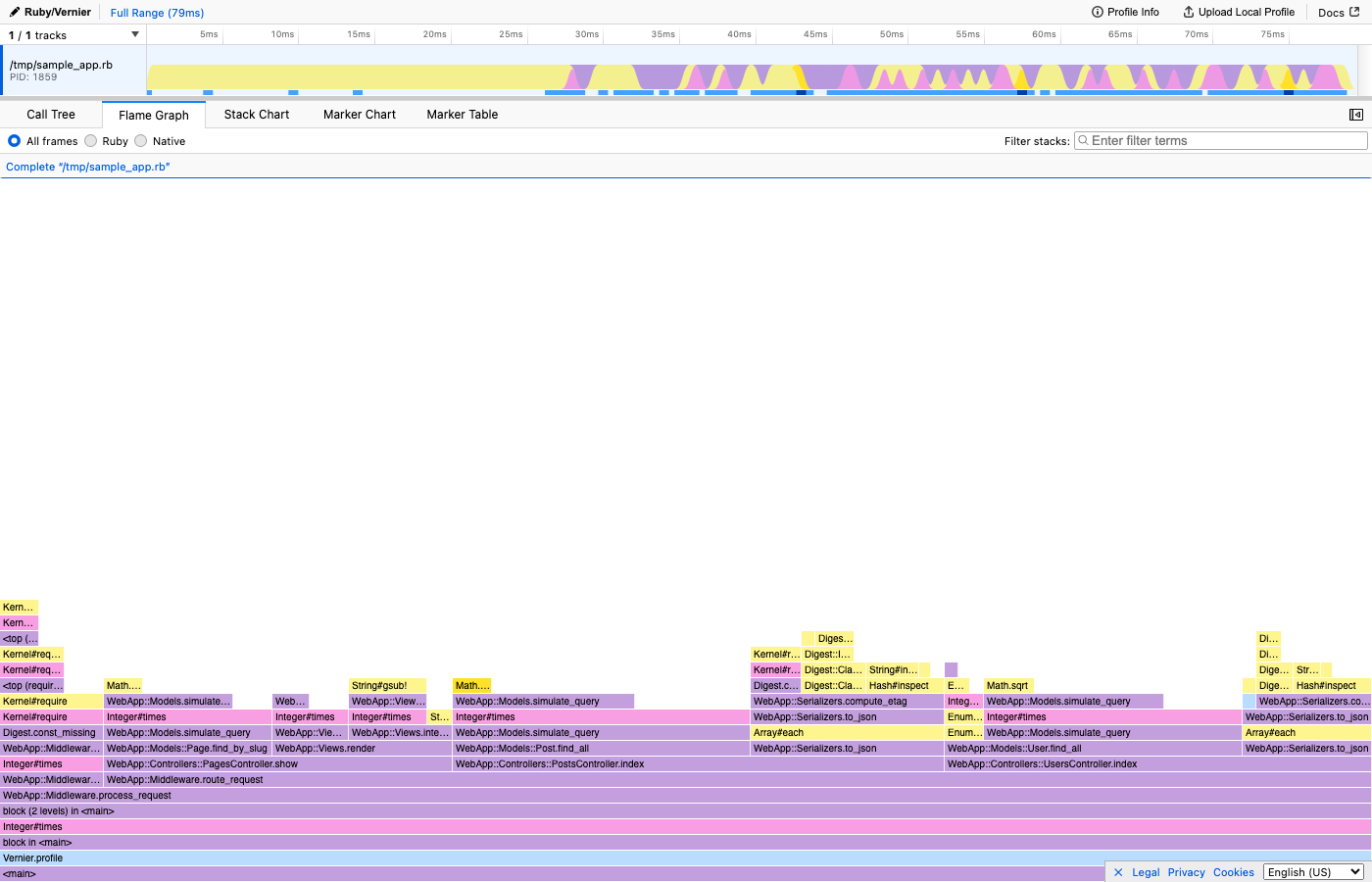
- The Y-axis is stack depth. Each layer is a function call. The bottom is the entry point; the top is the leaf function where time was actually spent.
- The X-axis is NOT time. Frames are sorted alphabetically - a function on the left didn’t run before one on the right. What matters is width: a frame’s width shows what proportion of samples included it.
- Width shows where the samples are. A wider bar accounts for more of the profile.
- Colour usually does not show cost. Depending on the tool, it may be random or distinguish frame types such as kernel and user code.
Here’s what a real flamegraph looks like in Vernier. This is the flamegraph view - the classic Brendan Gregg layout with root at the bottom:
The four optimisation strategies
Once I find an expensive path, I usually consider four options:
- Don’t do it - Remove work that is no longer needed.
- Do it less - Cache results, batch operations, add short-circuit conditions.
- Do it later - Defer to a background job, lazy evaluation, or a deferred request.
- Do it with less work - Better algorithm, fewer allocations, more efficient data structure.
The first two are easy to overlook because they involve questioning whether the work should happen, rather than making the existing code faster. A packages sidebar check on one of GitHub’s most visited pages was a recent example. We removed the check, deleted more code than we added, and reduced p50 latency for logged-in users by 23%.
Flamegraph vs stack chart
The names are similar, but the X-axis means something different in each view.
A flamegraph merges identical stack frames and sorts alphabetically. This gives you the clearest view of where your application spends its time overall. It’s the view I use for almost every investigation.
A stack chart keeps samples in chronological order. The X-axis is time. This is useful for understanding the sequence of events in a single request, but samples spread across a time axis instead of being merged, so individual frames become too narrow to read in longer profiling windows.
Here is the same profile as a stack chart. The X-axis is now time, so the request flow runs from left to right:
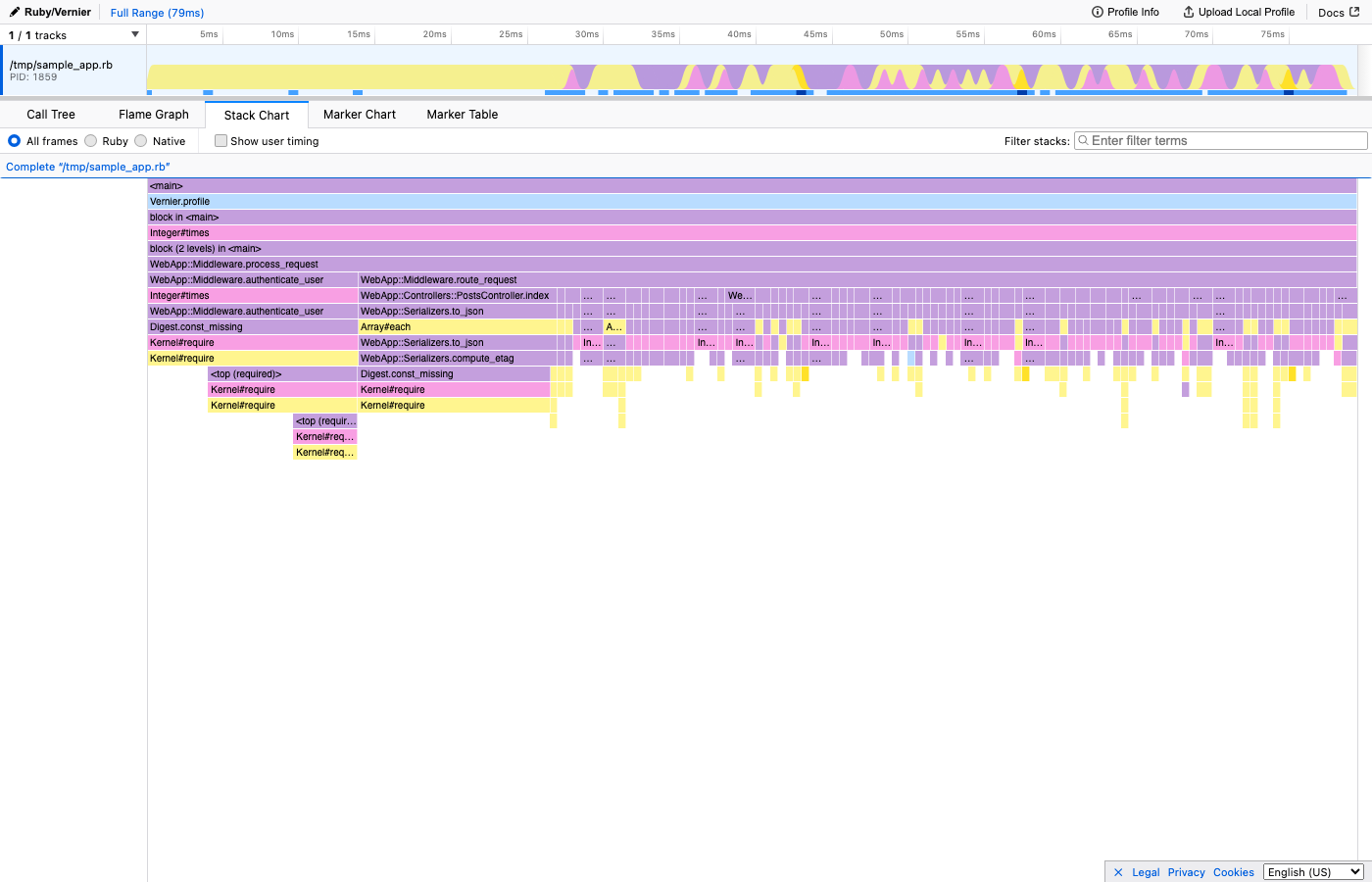
I use the merged flamegraph to find expensive code and switch to the time-ordered chart when I need to understand the sequence within a request.
Profiling in Ruby with Vernier
For Ruby, I use Vernier, a sampling profiler for CRuby. It requires Ruby 3.2.1+ and is designed for low-overhead production profiling.
require 'vernier'

Vernier.profile(out: "profile.json") do
  # your code here
end
Open the resulting JSON in vernier.prof, Firefox Profiler, or my flamegraph viewer.
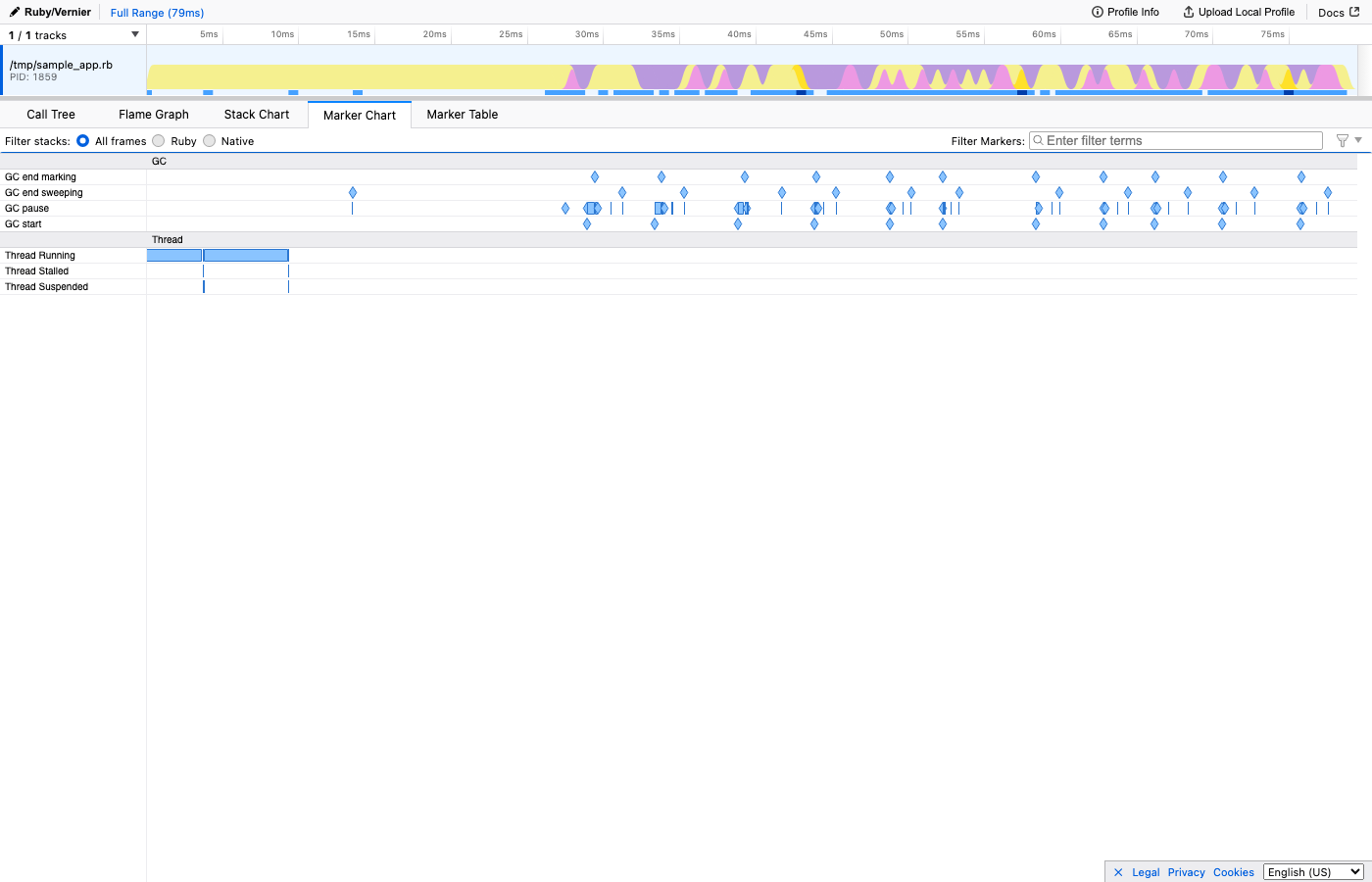
Vernier can also capture markers for GC events, SQL queries, and feature flag evaluations. They appear on the timeline next to the samples, which helps connect an expensive code path with the event that triggered it.
This marker chart includes GC pauses, Active Record queries, view rendering, and circuit breaker checks:
How to find the bottleneck
This is the process I use:
- Start with wide bars near the top. These are leaf functions that appeared in many samples.
- Trace the stack downward. The leaf may be expensive, but the useful fix is often in the caller that invokes it too often.
- Question unexpected work. A query may be fast enough in isolation but unnecessary on that request path. The same applies to serialisation, feature checks, and repeated allocations.
Flamegraphs are based on sampling, so very short functions can run between samples and disappear from the profile. They are still effective for finding where most CPU time goes, and their low overhead makes production profiles practical.
Getting started
You don’t need a large production system to try this. Profile a test suite, a single request in development, or a script that feels slow.
For a production example, see how removing one query cut a page’s CPU by 23%.